Get Email Updates:

Showing posts with label HP toolbox. Show all posts

December 9, 2009

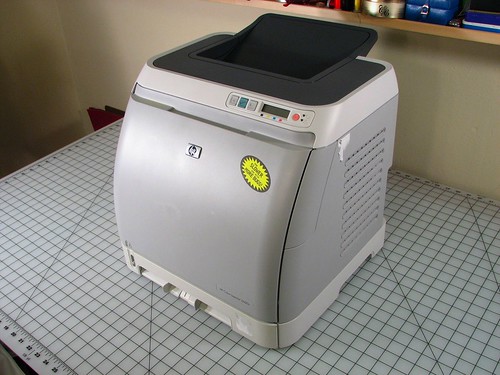
HP Toolbox - Activate to clean the HP 2600n Color Laser Printer

December 9, 2009 0

Print troubles and print quality irregularities are seldom encountered in the first few months run of a laser printer unit. Over time, toner and paper dust will accumulate over printer components such as the OPC drum, fuser assembly and even the mechanical rollers that come in contact with paper. This consequently affects component performance and produce print quality defects (like toner smears) over printouts. The only option therefore is to clean or perform maintenance work over affected components; which is tedious since that would involve dismantling pertinent printer panels to reach the inner cavities of the laser printer.

Maintenance work must be concentrated on the fuser assembly since the component does not have an automatic toner cleaning system. As the fuser generates a lot of heat, some of the toner particles tend to adhere to the fuser rollers and stick permanently, even if the cylindrical surface is coated with Teflon (a non-stick material usually coating frying pans). Consequently, a sizeable mass of toner particles sticking to the rollers can produce toner smears over printouts. Fuser rollers therefore need to be cleaned periodically to sustain acceptable print quality; unlike OPC drums that come outfitted with a cleaning device called the doctor blade. The doctor blade is made of thin and soft polymers that collect excess toner from the drum's surface and deposits it to the waste toner chamber of the toner cartridge.

Users of the HP 2600n color laser printer are fortunate because the printer unit comes with a built-in cleaning system that can be activated right on the printer's control panel. The cleaning procedure is outlined as follows:

  1. Turn on the laser printer and be sure that it is set to ready mode.
  2. Open the HP Toolbox from the printer's control panel
  3. When the troubleshooting tab appears, click maintenance and follow it up by pushing the cleaning page icon. The printer will then print a document with printed pattern.
  4. Remove all loaded print media in tray 2 and from the optional tray 3.
  5. Take out the printed media with pattern and position it face down into the paper tray 2 or the optional paper tray 3.
  6. Lastly, press clean on the printer panel

The whole sequence should clear the fuser assembly of baked toner and paper dust, and produce smear free printouts.

Print defects are the fare of laser printers and they are numerous. But when print irregularities are due to a low toner supply or an empty OEM toner cartridge, replenish the cartridge's supply with a compatible toner refill kit and extend its print capacity for up to 3 print cycles.

Look up our previous posts on the HP 2600n laser printer.

September 28, 2009

Configure your HP 2600n Laser Printer and avoid printing quality issues

September 28, 2009 0
The HP Laserjet 2600n color laser printer has been devised to be user friendly and is therefore outfitted with functionalities that guide first time users over the state of the art features of the unit. A user will simply have to browse the service manual more closely to appreciate the laser printer's capabilities and likewise be able to resolve pertinent cleaning and maintenance issues through its control panel.

hp2600

Avoiding, identifying and even correcting print defects is a standard feature of the HP 2600n color printer. Simply refer to the legibly charted, print quality issues checklist to identify the problem. Any encountered print quality defect has an accompanying solution presented on the chart and troubleshooting could be performed conveniently through the control panel - without even opening the laser printer. Below is a rundown of the common causes of print defects encountered in the use of an HP 2600n laser printer.

Type of print media used is a typical cause of most print defects; particularly when transparencies loaded do not meet printer specifications. Laser printer users should know that print quality is at its best when paper used is coated or with that smooth, glossy surface. If special print media is loaded for the printout of labels, transparencies, collaterals and letterhead, make sure that an appropriate print setting is selected on the control panel so that the desired printout quality will be generated.

Low toner supply also contributes reasonably to print quality problems. Thus, it becomes necessary to periodically monitor the Supplies Status Page of the printer to know if consumables' supply levels are already low or empty. Note however that the supplies status monitor do not operate when a refilled toner cartridge is loaded into the laser printer Therefore, the information prompt is not available for toner cartridges replenished with a toner refill kit. Nonetheless, printing continues but the user will just have to manually check if the cartridge requires a refill.

When the unit is printing incorrectly, the trouble is usually associated with software used. At this point, it's time to call HP Customer Care or perhaps search for a solution outlined in the flyer that comes with the packaging. However if printing is successful with the supplied program called the HP Toolbox, then the problem most likely lies with the printer driver. Now if the laser printer is running on a different software, then the culprit is probably the software. To correct this problem, restart both the printer and computer and try to print anew.

Most print quality problems pertinent to the HP 2600n color laser printer have remedies and the solutions can be accessed outright on the laser printer's control panel.
Related Posts with Thumbnails
 
◄Design by Pocket►